


Damage resulting from not using the printer for long periods
Leaving your printer unused for an extended period might seem trivial, but in reality, this neglect can lead to technical and financial problems that may cost you dearly later. This article will explore the drawbacks of leaving your printer unused and how to prevent these problems through regular printer maintenance and by following specific steps for printer repair after a prolonged period of inactivity.
1. The dangers of leaving the printer unused for extended periods
Ink drying and printhead clogging
Ink drying inside cartridges: When the printer is not operated for weeks or months, the liquid ink gradually begins to dry inside the cartridge, and its particles turn into a sticky substance that cannot flow smoothly.
Print head blockage: The print head is responsible for precisely spraying ink onto the paper. When the ink dries, the tiny nozzles become clogged, reducing print quality or causing the print head to stop working altogether.
Reduced print quality: You may notice white spots or lines, or simply faded, uneven print. This problem is common in both laser and inkjet printers.
Mold and moisture buildup inside printer components
The accumulation of dust and moisture inside the printer body leads to the growth of fungi or the buildup of dirt on sensitive parts (Rolers, Sensors).
These factors cause a reduction in the "printer's lifespan" and the appearance of sudden "error messages" or unexpected malfunctions.
Wear and tear of mechanical parts and its financial impact
Belts and rollers: If they remain motionless for a long time, their materials lose elasticity and become rigid or cracked.
Gears and small motors: may need to be repainted or lubricated to reduce friction and ensure smooth operation.
Maintenance costs: Repairing the "paper hanging drums" or replacing the "feed motor" can be expensive compared to simple maintenance before the problem occurred.
2. Negative impacts on the user and business
Workflow disruption
The inability to print important documents when needed leads to delays in completing urgent tasks, whether in office work or at home.
Repeated occurrences of this problem negatively impact the reputation of businesses, especially if you own an online store or an office that needs to print invoices and documents daily.
Increase in Total Cost of Ownership (TCO)
Instead of a “low periodic maintenance cost,” it can turn into a “high repair or replacement cost,” so early attention reduces the cost in the long run.
Low print quality
If you don't clean the printhead regularly, you may experience distortion and inaccurate colors in multi-color printers. This negatively impacts official documents or printed marketing materials that project a professional image for your organization.
3. Solutions to avoid problems with printer usage
To avoid the above damage, it is recommended to follow the periodic “printer maintenance procedure” which includes the following steps:
3.1. Operate the printer periodically
Perform a weekly test print: Even if you don't need the paper, print a test page or a simple document (at least once every two weeks). This helps circulate the ink within the cartridge and prevents it from drying out, keeping the printhead functioning properly.
Using "Economy Mode": To conserve ink during routine testing, this mode can be activated in the printer settings. Although it produces slightly lower quality, it is sufficient to keep the internal system running smoothly.
3.2. Regular internal cleaning of the printer
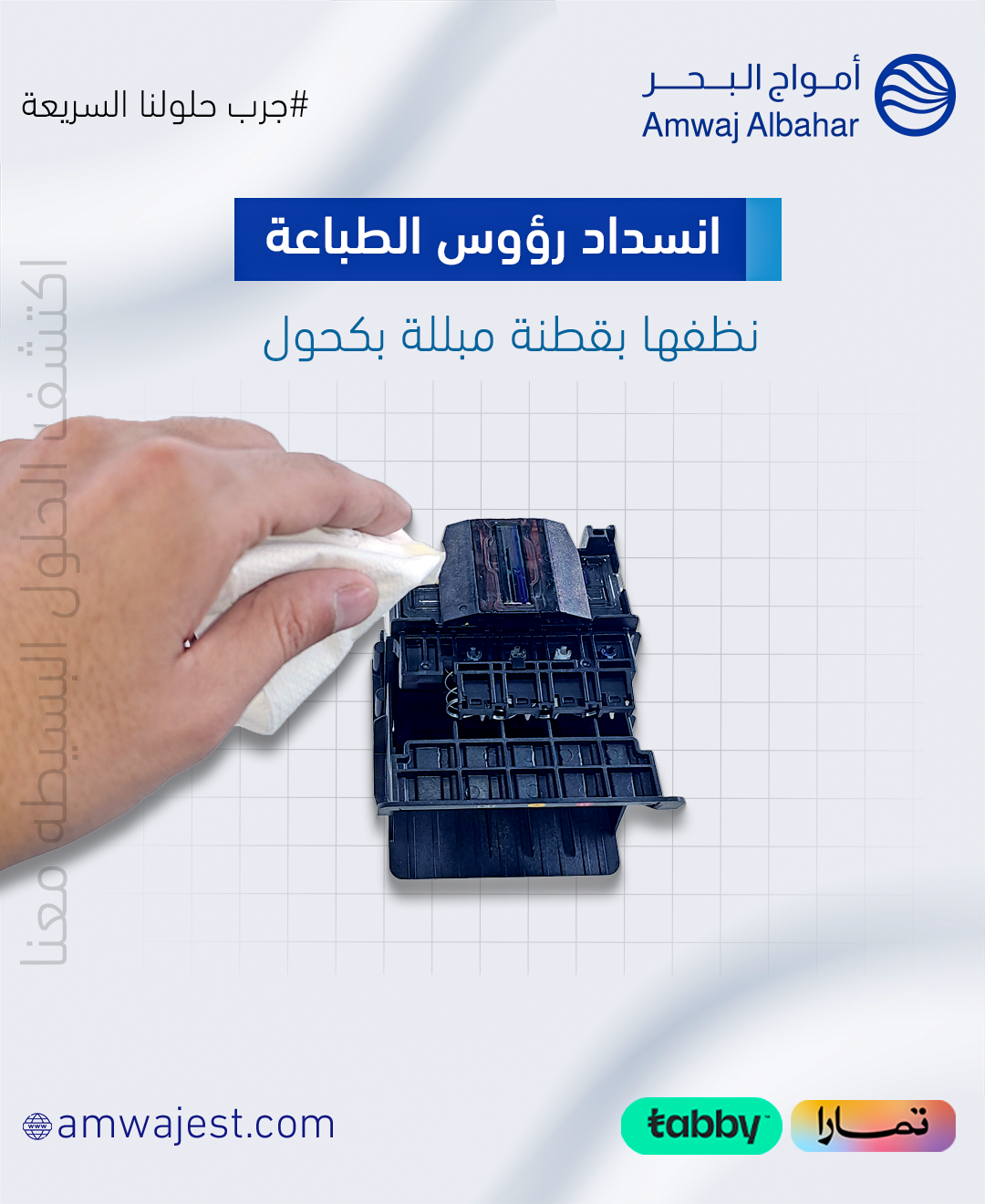
Print Head Cleaning: Most modern printers have a Cleaning or Maintenance option in the Settings menu (Settings → Maintenance → Head Cleaning). Follow the software instructions to remove accumulated dirt.
Dusting from the inside: Use a soft brush or compressed air to clean the inside (Rollers and paper sensors) every three months.
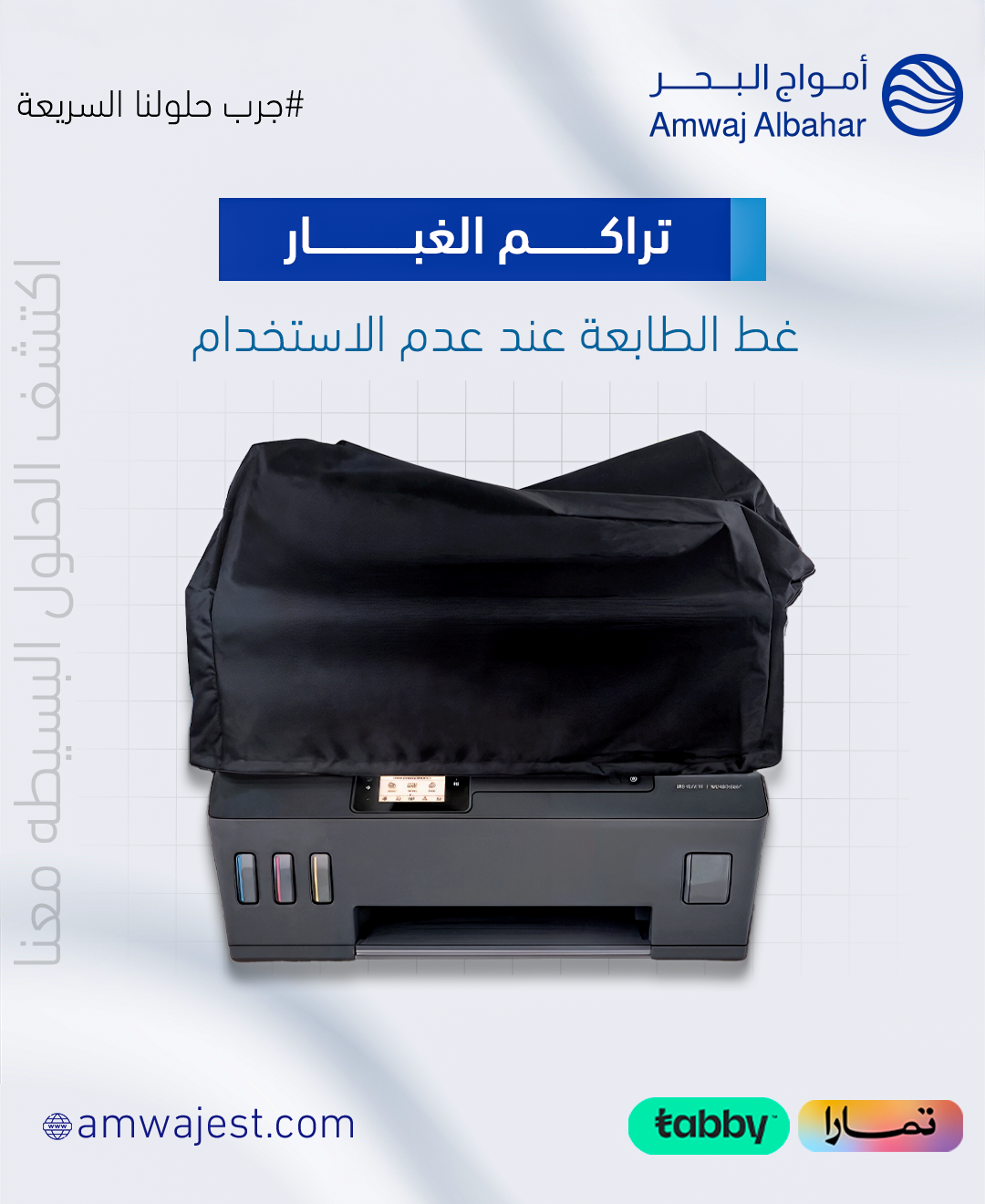
Cleaning the printer's exterior surface: Wipe the outer plastic skin with a soft cloth to ensure that no heavy dust enters the internal components.
3.3. Proper storage of the printer and cartridges
Complete shutdown: When not in use for more than a month, shut it down, remove the cartridge, and place it in a sealed bag to prevent the ink from drying out.
Store in a dry and cool place: Avoid high temperatures and humidity which contribute to damage to the cartridges and air filtration necessary for cooling.
Position the printer horizontally: If it is a small printer (Inkjet Printer), keep it level to prevent ink from flowing into unwanted internal areas.
Alternate between color and black ink production: In some color inkjet printers, occasionally run “Print Black Only” to avoid drying out rarely used color cartridges.
4. Methods for troubleshooting printer problems after a long period of inactivity.
If you find yourself with a printer that has been neglected for several months and is not working, follow these steps to restore its performance:
4.1. Complete restart and activation of the “print head”.
Factory Reset: Some printers have a Reset option in the maintenance menu; it removes temporary settings and restores the system to a near-new state.
Run the “Print Head” cleaning cycle automatically: Activate the Head Cleaning option several times in a row (usually three consecutive cycles).
Waiting after each cleaning cycle: Once finished, leave the printer for 30 minutes before checking the print quality.
4.2. Inspect the cartridges and replace them if necessary.
Check the ink level: If you see that the ink level is very low or the maintenance schedule indicates cartridge replacement, purchase one from an authorized distributor. Original ink cartridges are the best choice to avoid recurring problems.
Cleaning the ink lines: In printers equipped with external ink tanks (Continuous Ink Supply System), you may need to flush out the dried ink with special cleaning chemicals available at printer accessory stores.
4.3. Using software tools to scan the printer
Generating a Diagnostic Report: Most modern printers can generate a diagnostic report detailing any problems. Go to Maintenance → Print Diagnostic Report.
Updating drivers and firmware: Downloading the latest version from the printer manufacturer's website (such as HP, Canon, Epson) fixes many minor errors resulting from incompatibility with the new operating system.
4.4. Resorting to professional “printer maintenance services”.
If the printhead blockage persists after all previous attempts, it is advisable to take the printer to a qualified technician. Many service centers offer free or low-cost diagnostics to identify parts that need replacement or internal settings reset.

5. General tips for improving printer lifespan
Set a periodic maintenance schedule
Set a specific day or week to run the printer, print a test page, and perform a light cleaning. You can add this schedule to your digital calendar and set up periodic reminders.
Use suitable paper
Using high-quality paper (depending on the printer type: Glossy for photos, Matte for documents) reduces stress on the rollers, prevents malfunctions, and achieves “high print quality”.
Power the printer appropriately
Connecting the printer to a power regulator (UPS or Surge Protector) prevents voltage fluctuations from damaging the internal electronic board.
Reduce continuous intensive use
If you are printing large numbers of pages in a single work cycle, give the printer a break from time to time to avoid overheating of the print head and motors.
6. Conclusion
Leaving a printer unused might seem harmless, but prevention is better than cure. Regularly maintaining and operating the printhead, performing periodic internal cleaning, using genuine ink, and storing the printer properly are all simple steps that significantly extend the printer's lifespan, ensure print quality, and save money that would otherwise be spent on future repairs or purchasing a new printer.
Start applying these tips now to avoid the “damage of not using the printer regularly” and enjoy a smooth and stable printing service all the time!